13. Project Setup
Under normal circumstances, Logic Pro (10.7.9 and newer) will aggressively halt processing on any track that does not currently contribute to the output of the project. To work around this and effectively "trick" Logic into keeping all tracks alive at all times, we will create a global sidechain input that always produces some amount of sound on every individual track.
The procedure described in this guide will accomplish this by creating a special SYNC_TONE track that will be used as a sidechain input across the project. This is not necessarily the only way of accomplishing this. However, the SYNC_TONE track MUST adhere to the principles that trigger Logic's scheduler to activate processing on the SYNC_TONE track itself. This means the track must contain either an audio event or a MIDI event, and the event must span the entire duration of the project. If the event cuts off at any time (for audio, the event goes silent or ends; for MIDI, the event no longer containing valid MIDI data that would trigger a virtual instrument to make sound), Logic may flag the SYNC_TONE track for sleeping, at which point the sidechain inputs across the project will no longer keep other tracks alive.
13.1 Creating the Sync Tone
If you are starting with a new project, set the first track of the project to be a stereo audio track. Otherwise, add a new stereo audio track to your project. Name the track SYNC_TONE.
For the purposes of this guide, we will use a short sample of pink noise as our synchronization tone. You can use any audio sample you would like for this, as long as it produces some level of sound (a track of silence will likely not work). Note that we will apply processing to drop the level of the sync tone below noise floor levels for 24-bit audio. This will mitigate buildup of the synchronization tone during production and mixing.
Why use an audio sample instead of Logic's Test Oscillator plugin?
While Logic's Test Oscillator plugin can generate various test tones, including pink noise, it is not used as part of this procedure. While testing in Logic to create this guide, the Test Oscillator exhibited behavior that would effectively mute downstream tracks and only play the output of the plugin. A sample of pink noise is used instead to avoid this behavior.
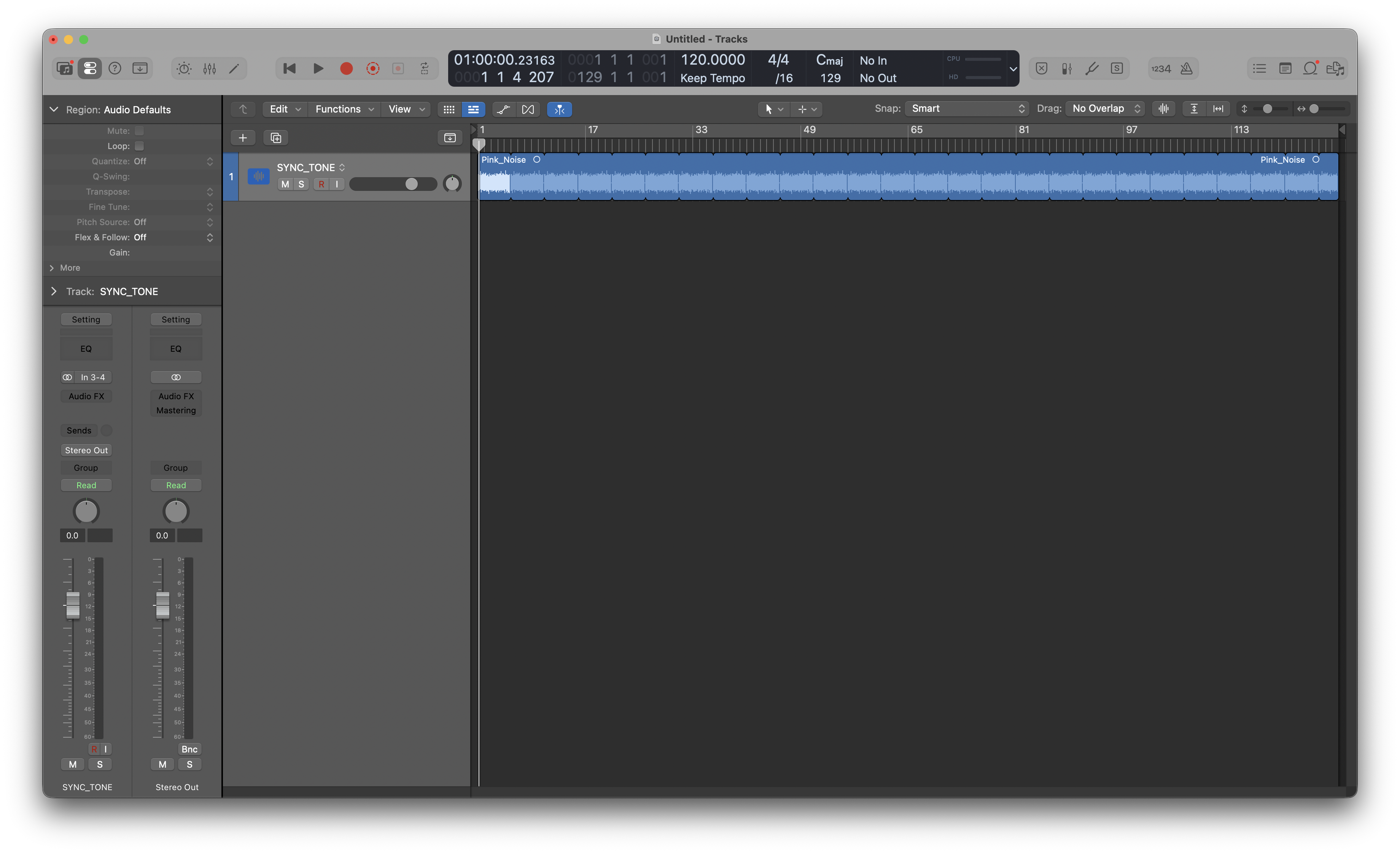
Drag and drop the sample of pink noise onto the SYNC_TONE track. Then, loop the sample for the full duration of the track. When finished, your project should resemble the following:
Next, we will add two instances of Logic's stock Gain plugin to the track. In both instances, set the Gain parameter to -96 dB as shown below:
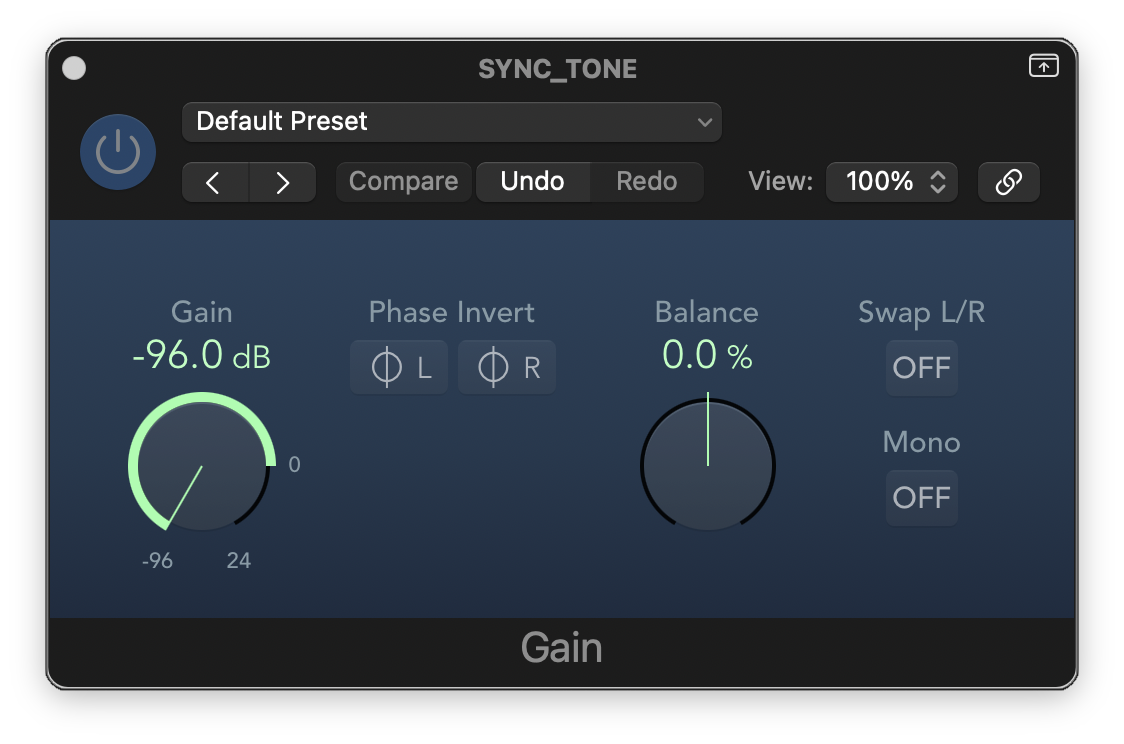
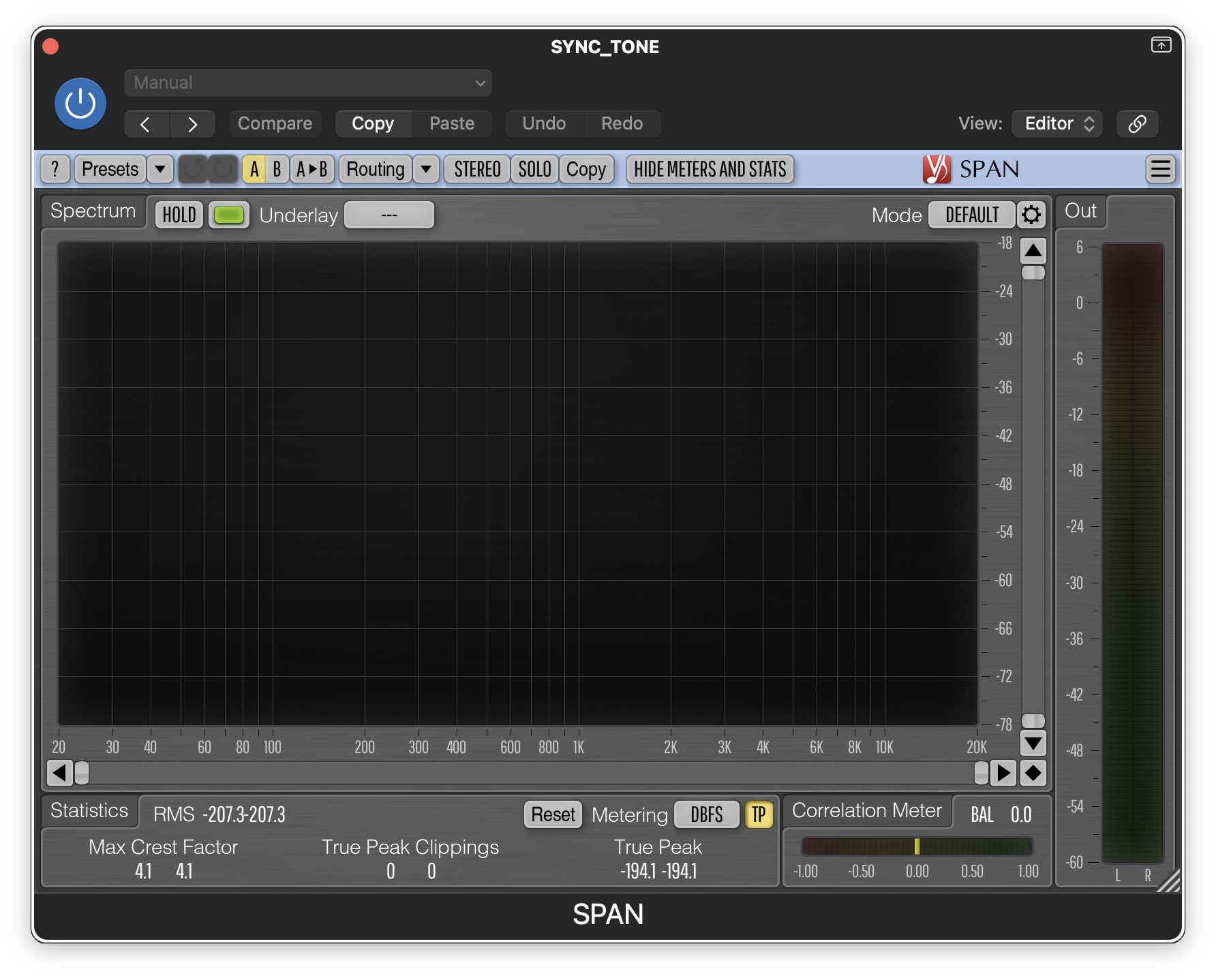
This will provide a cumulative attenuation of -192 dB to the input sample's level. For the sample of pink noise used in the example, the stacked Gain plugins measure approximately -207 dBFS RMS (-194.1 dBFS true peak):
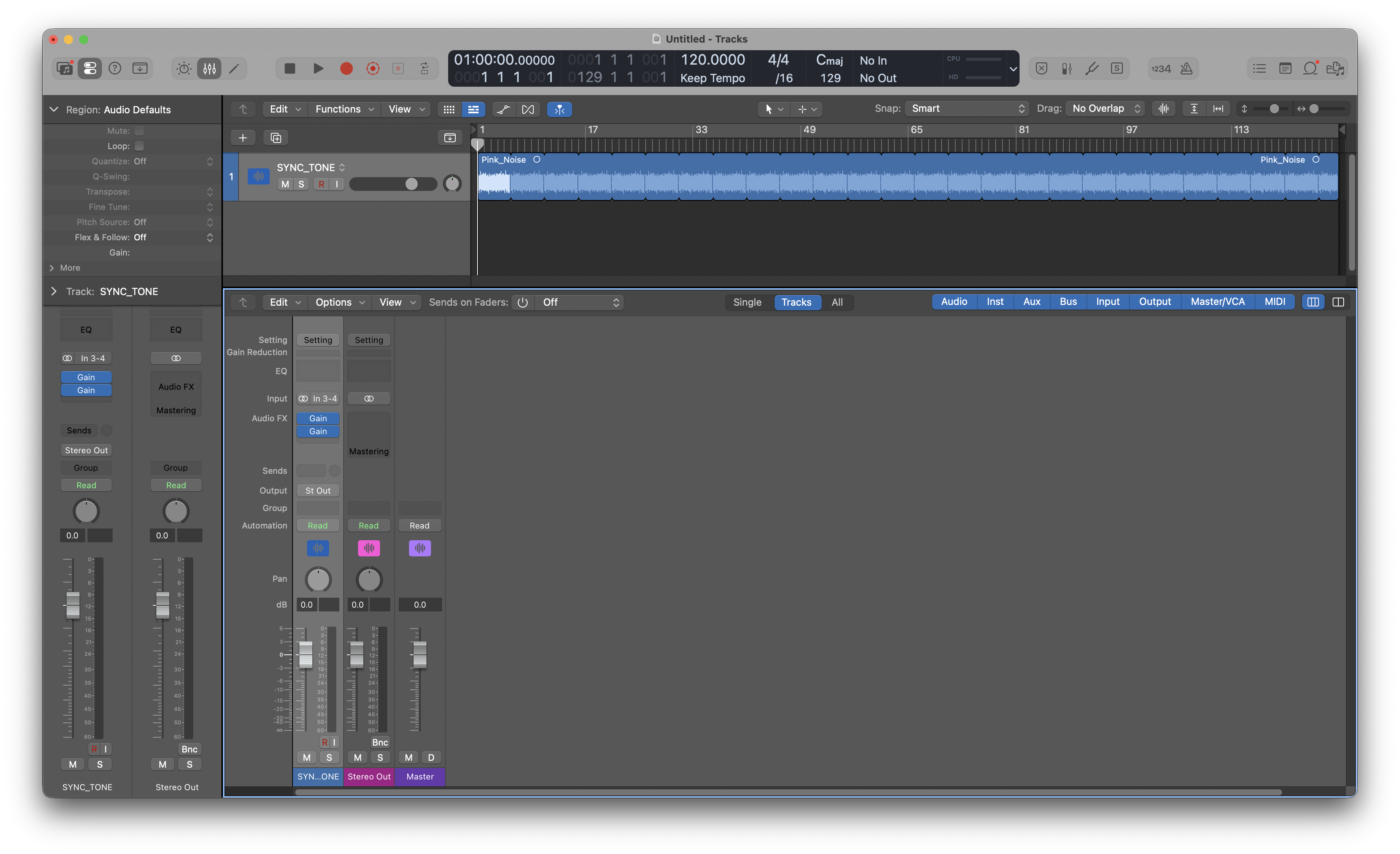
At this point, the SYNC_TONE track is ready for use. When finished, it should resemble the following in your project:
13.2 Bypassing the Sync Tone
Testing Needed
Additional testing is needed to verify that bypassing the sync tone during mixdown will not negatively affect the operation of THS or the routing structure used to enable use of THS. Please open an issue on the guide's Github repository if you encounter problems when bypassing the sync tone.
When you are finished mixing and producing your track and ready to bounce to audio, you can mute the SYNC_TONE track prior to bouncing. This will prevent the synchronization tone you used from becoming part of your final mixdown.
If you need to make further changes to your project after bouncing, unmute the SYNC_TONE track, start and stop playback, and all tracks should now be alive and ready for use.